
Digitally signed PDFs present a unique editing challenge‚ as alterations can compromise their legal validity and integrity․ Workarounds exist‚ but understanding
the implications is crucial before proceeding with any modifications to a signed document․
Understanding Digital Signatures and Document Security
Digital signatures aren’t merely images; they’re sophisticated security features ensuring document authenticity and integrity․ These signatures utilize digital certificates to verify the signer’s identity and confirm the document hasn’t been altered since signing․ Laws in many countries govern their use‚ particularly for commercial and legal documents․
When a PDF is signed‚ cryptographic hash functions create a unique “fingerprint” of the document’s content․ This fingerprint is encrypted with the signer’s private key‚ creating the digital signature․ Any change to the document‚ even a minor one‚ alters the hash‚ invalidating the signature and signaling potential tampering․ Certified PDFs further enhance security‚ adding restrictions to prevent modifications․
Why Editing a Signed PDF is Generally Difficult
Editing a signed PDF is inherently difficult because the signature’s purpose is to guarantee the document’s immutability․ If alterations are made after signing‚ the digital signature becomes invalid‚ raising concerns about the document’s trustworthiness․ PDFs signed with digital certificates or those that are ‘certified’ are specifically locked to prevent changes or to reliably detect any tampering․
This locking mechanism is a core feature‚ designed to uphold legal and commercial validity․ Attempting to directly edit a signed PDF often results in “Document is Locked” errors‚ highlighting the security measures in place․ Circumventing these protections requires specific tools and careful consideration of the legal ramifications․

Methods to Edit a Signed PDF (Workarounds & Considerations)
Several workarounds exist for editing signed PDFs‚ including printing to PDF via Chrome and utilizing professional PDF editors like Adobe Pro or Nitro Pro․
Method 1: Printing to PDF (Chrome Workaround)
A surprisingly effective‚ albeit basic‚ method involves leveraging Google Chrome’s “Print to PDF” functionality․ This technique essentially creates a new PDF version‚ effectively removing the digital signature’s restrictions․ To implement this workaround‚ open the signed PDF within Chrome․ Then‚ initiate the print process (Ctrl+P or Cmd+P)․
In the print destination options‚ select “Save as PDF․” Chrome will generate a new PDF document that appears identical to the original but lacks the active digital signature․ This allows for editing‚ but remember‚ the signature is no longer valid‚ and the document’s integrity is compromised from a legal standpoint․ This is a quick fix‚ but proceed with caution․
Step-by-Step Guide: Chrome Print to PDF
First‚ open your signed PDF document using the Google Chrome browser․ Next‚ press Ctrl+P (Windows) or Cmd+P (Mac) to open the print dialog box․ In the “Destination” dropdown menu‚ select “Save as PDF” instead of a physical printer․
Before saving‚ click “More settings” to adjust options like page size and margins if needed․ Finally‚ click the “Save” button and choose a location to save the new‚ editable PDF․ This process effectively creates a snapshot‚ removing the signature․ Remember‚ this new PDF is no longer legally signed and should be treated as a draft for modifications․
Limitations of the Chrome Print to PDF Method
While a convenient workaround‚ the Chrome “Print to PDF” method has significant limitations․ Crucially‚ it invalidates the original digital signature‚ rendering the document unsigned and potentially unusable for legal purposes․ The resulting PDF is essentially a copy‚ lacking the security and verification features of the signed original․
Furthermore‚ complex PDF features like interactive forms might not be preserved perfectly․ This method is best suited for simple edits where signature validity isn’t paramount․ Always retain the original signed document and understand the legal ramifications before distributing the modified version․
Method 2: Using Professional PDF Editors (Adobe Pro‚ Nitro Pro)
Professional PDF editors like Adobe Acrobat Pro and Nitro Pro offer more robust‚ albeit complex‚ solutions for editing signed PDFs․ These tools provide integrated editors designed to handle digitally signed documents with greater control․ They allow access to the underlying content while attempting to preserve signature validity‚ though this isn’t always guaranteed․
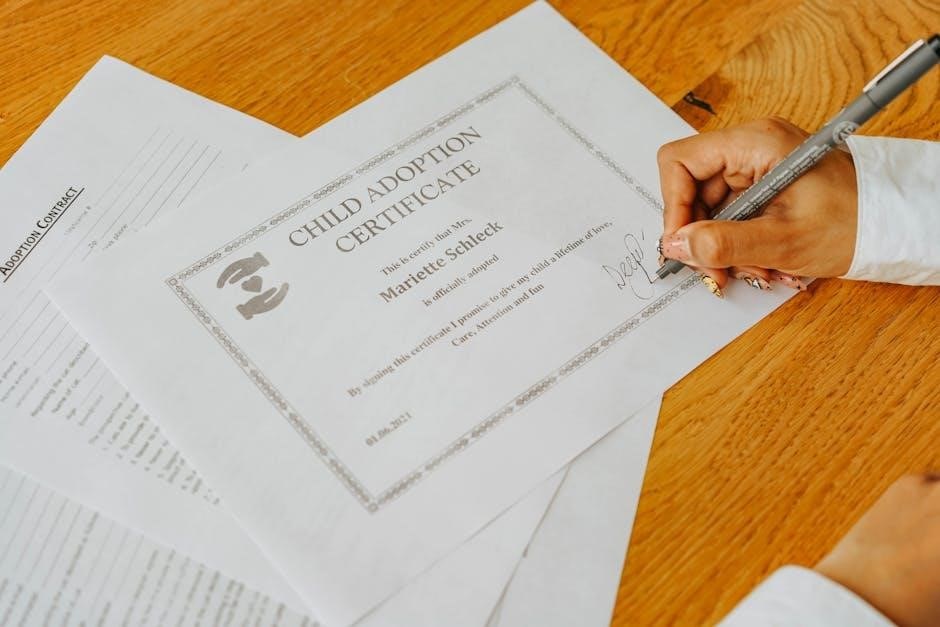
These editors often feature tools to remove signatures (with appropriate permissions and warnings) or make edits in a way that flags alterations․ However‚ altering a signed document can have legal consequences‚ so proceed with caution and understand the implications․
Accessing the Integrated Editor in Adobe/Nitro Pro
Once you open a signed PDF within Adobe Acrobat Pro or Nitro Pro‚ accessing the editing toolkit is straightforward․ The PDF will typically open automatically‚ and a prominent “Continue” button will appear‚ launching the integrated editor․ This editor provides a familiar interface with tools for text manipulation‚ image insertion‚ and document rearrangement․
Users can easily insert new content‚ tweak existing paragraphs‚ and upload visuals to complement the text․ The software aims to provide a seamless editing experience‚ but remember that any changes may affect the document’s signature validity․
Making Edits with Professional Tools
Professional PDF editors like Adobe Acrobat Pro and Nitro Pro offer robust tools for modifying document content․ Users can utilize simple text tools to insert new information or refine existing paragraphs with ease․ Drag-and-drop functionality allows for effortless rearrangement of sections within the PDF․
Furthermore‚ these editors support the upload of visuals to enhance the document’s presentation․ The intuitive interface aims to simplify the editing process‚ enabling users to make precise changes․ However‚ always be mindful of the potential impact on the digital signature’s validity when altering a signed document․
Saving Changes While Retaining Signatures (Professional Editors)
Professional PDF editors often allow saving changes while attempting to retain the original signatures‚ though this can be complex․ Before finalizing‚ preview the document carefully to confirm signature integrity․ Saving typically updates the document‚ potentially flagging alterations to the signature’s validity․
It’s crucial to understand that modifications may invalidate the signature depending on the PDF’s security settings and the type of signature applied․ Some editors offer options to preserve signature appearance even if validation fails․ Always keep a copy of the original signed document for legal purposes‚ as alterations can have ramifications․
Understanding the Legal Implications
Digital signatures ensure document integrity‚ and altering signed PDFs carries legal risks․ Unauthorized changes can invalidate agreements and potentially lead to legal consequences‚ so proceed cautiously;
The Purpose of Digital Signatures: Ensuring Document Integrity
Digital signatures aren’t merely aesthetic; they are fundamentally about guaranteeing a document’s authenticity and preventing unauthorized alterations․ Their core function is to provide assurance that the document hasn’t been tampered with since it was signed․ This is achieved through cryptographic techniques that bind the signature to both the content and the signer․
If a document is altered after being digitally signed‚ the signature becomes invalid‚ immediately signaling a breach of integrity․ This makes digital signatures invaluable for legal documents‚ contracts‚ and any situation where proof of unaltered content is paramount․ The entire purpose revolves around establishing trust and reliability in digital exchanges‚ mirroring the security provided by traditional handwritten signatures․
Legal Ramifications of Altering Signed Documents
Altering a digitally signed PDF can have serious legal consequences‚ potentially rendering the document invalid and unenforceable․ Depending on the jurisdiction and the document’s purpose‚ such alterations could be considered forgery or fraud․ Laws in many countries protect the integrity of digitally signed documents‚ recognizing their legal weight․
Tampering with a signed contract‚ for example‚ could void the agreement entirely․ Even seemingly minor changes can invalidate the signature and open you up to legal liability․ It’s crucial to understand that the purpose of a digital signature is to create a legally binding record‚ and any modification undermines that purpose․ Seeking legal counsel is advisable before attempting any edits․
When Editing is Acceptable (and When It’s Not)
Editing a signed PDF is generally unacceptable if it alters the original‚ signed content․ However‚ filling out unsigned form fields or adding non-destructive comments is usually permissible․ If all parties agree to a revision‚ a new signature is required‚ effectively creating a new document․

Circumstances where editing might be acceptable include correcting minor typographical errors with full disclosure to all signatories․ However‚ altering substantive terms is almost always legally problematic․ Remember‚ the core principle is maintaining the document’s integrity post-signature․ If legal significance is involved‚ always prioritize obtaining explicit consent and re-signing․

Alternative Approaches & Considerations
Explore editing only unsigned fields‚ adding comments for non-destructive feedback‚ or sharing a PDF link for collaboration—avoiding direct alterations to the signed original․
Editing Unsigned Form Fields Within a Signed PDF
Often‚ signed PDFs contain interactive form fields that remain editable even after the document has been digitally signed․ These fields – such as text boxes‚ checkboxes‚ or dropdown menus – are designed for data entry and don’t inherently affect the validity of the signature․
You can typically fill out or modify these fields without invalidating the existing signature․ However‚ it’s vital to confirm that your edits are confined solely to these designated areas․ Any attempt to alter content outside of these form fields could compromise the document’s integrity and legal standing․ Simply fill out the form fields‚ check the boxes‚ and add a signature if needed․
Adding Comments and Markups (Non-Destructive Editing)
A safe way to interact with a signed PDF is through adding comments and markups․ Most PDF viewers and editors allow you to insert notes‚ highlights‚ or annotations without directly altering the original document content․ This approach is considered “non-destructive” because the signature remains valid‚ and the original PDF remains unchanged․
Easily add comments or markups to a PDF online by following these steps․ This method is ideal for providing feedback or requesting clarifications without jeopardizing the document’s legal validity․ Share a link to your PDF so anyone can easily view and collaborate on your document․
Sharing PDFs for Collaboration (Without Altering the Original)
When collaboration is needed on a signed PDF‚ avoid directly editing the original․ Instead‚ share a copy or utilize features designed for collaborative review․ Sharing a link to your PDF allows others to view and comment without modifying the signed version‚ preserving its integrity․
This ensures that the digital signature remains valid and legally sound․ Many platforms enable simultaneous viewing and annotation‚ facilitating teamwork while maintaining document security․ Remember‚ the purpose of a digital signature is to guarantee the document hasn’t been altered post-signing․

Technical Aspects of PDF Security
PDF security relies on digital certificates and locking mechanisms‚ preventing unauthorized changes․ Certified PDFs offer heightened security‚ restricting editing capabilities to maintain integrity․
Digital Certificates and PDF Locking Mechanisms
Digital signatures within PDFs are intrinsically linked to digital certificates‚ verifying the signer’s identity and ensuring authenticity․ These certificates‚ issued by trusted Certificate Authorities‚ create a cryptographic ‘seal’ on the document․ PDF locking mechanisms then build upon this foundation‚ actively preventing alterations after signing․ If a PDF is signed with a digital certificate or is ‘certified’‚ it’s specifically locked to detect or outright prevent modifications․
This locking isn’t merely a software restriction; it’s a fundamental aspect of the PDF standard designed for commercial and legal documents․ The core principle is to provide assurance that the document remains unaltered post-signature‚ upholding its legal weight and reliability․ Any attempt to edit a locked PDF will typically invalidate the signature or be explicitly blocked by the software․
Certified PDFs: Increased Security and Restrictions
Certified PDFs represent a heightened level of security compared to simply digitally signed documents․ Certification doesn’t just verify the signer; it confirms that the entire document content was approved and remains unchanged since certification․ This process essentially ‘freezes’ the PDF‚ imposing stricter restrictions on editing․
Unlike a standard digital signature which focuses on the signature field’s integrity‚ certification locks down the whole document; Any modification‚ even a minor text change‚ immediately invalidates the certification․ This makes certified PDFs ideal for crucial records where absolute integrity is paramount․ Because of these robust security features‚ editing a certified PDF is significantly more challenging and often impossible without breaking the certification․

Tools and Software Options
Adobe Acrobat Pro and Nitro Pro offer robust editing capabilities for PDFs‚ while online editors provide limited functionality and potential security risks when dealing with signed documents․
Adobe Acrobat Pro: A Comprehensive Solution
Adobe Acrobat Pro stands as a premier choice for editing signed PDFs‚ offering a powerful and integrated editor․ Upon opening a signed PDF‚ the software automatically detects the digital signature․ Accessing the editor is straightforward; simply launch the editing toolkit after the initial document load․
Users can then utilize intuitive text tools to modify content‚ rearrange sections‚ and incorporate visuals․ A crucial feature is the ability to preview changes before saving‚ ensuring signatures are retained while updates are applied․ However‚ altering a signed PDF may invalidate the signature‚ so proceed with caution and always retain a copy of the original․ Acrobat Pro provides comprehensive control and features for managing signed documents effectively․
Nitro Pro: An Alternative Professional Editor
Nitro Pro emerges as a robust alternative to Adobe Acrobat Pro for editing signed PDFs‚ providing a similarly comprehensive feature set․ Like Acrobat‚ Nitro Pro readily identifies digital signatures within a document․ After opening the PDF‚ users can access the integrated editor with a simple click of the “Continue” button‚ launching a full suite of editing tools․
This allows for easy text manipulation‚ content rearrangement‚ and image insertion․ Nitro Pro also emphasizes previewing changes before permanent saving‚ helping to preserve signatures․ It’s vital to remember that altering signed PDFs can have legal ramifications‚ so maintaining the original is key․ Nitro Pro offers a powerful and reliable solution for professional PDF editing․
Online PDF Editors: Limitations and Risks
While numerous online PDF editors claim editing capabilities‚ they often fall short when dealing with digitally signed documents․ Many struggle to recognize or properly handle signatures‚ potentially invalidating them during the editing process․ Furthermore‚ uploading sensitive‚ signed documents to third-party websites introduces significant security risks․
These platforms may have questionable data privacy policies‚ leaving your information vulnerable․ The purpose of digital signatures is to guarantee document integrity‚ and online editors can easily compromise this․ While some offer basic markup tools‚ substantial edits are often restricted or unreliable․ Exercise extreme caution and prioritize secure‚ professional software for signed PDF manipulation․
Best Practices for Handling Signed PDFs
Always retain the original signed copy‚ implement version control‚ and seek legal counsel when unsure about editing․ Protecting document integrity is paramount․
Always Keep a Copy of the Original Signed Document
Before attempting any edits to a signed PDF‚ creating a pristine backup of the original document is absolutely essential․ This safeguards against accidental data loss or corruption during the editing process․ The original‚ unaltered version serves as a legally sound reference point‚ proving the document’s state before any modifications were made․
This practice is particularly vital given the legal ramifications of altering signed documents․ Should disputes arise‚ the original file provides irrefutable evidence of the initial agreement․ Consider storing this backup in a secure‚ separate location – ideally‚ a different drive or cloud storage service – to further protect it from unforeseen circumstances․ Maintaining this original copy is a cornerstone of responsible PDF management․
Document Version Control
Implementing a robust document version control system is paramount when dealing with edited signed PDFs․ Each modification should trigger the creation of a new version‚ clearly labeled with a date and a concise description of the changes made․ This allows for easy tracking of alterations and facilitates reverting to previous states if necessary․
Avoid overwriting the original signed document directly․ Instead‚ save each edited version as a separate file (e․g․‚ “DocumentName_v1_Edited‚” “DocumentName_v2_Revised”)․ This meticulous approach ensures a complete audit trail‚ demonstrating transparency and accountability․ Proper version control is crucial for maintaining document integrity and navigating potential legal complexities․
Seeking Legal Advice When Necessary
Given the legal ramifications of altering signed documents‚ consulting with legal counsel is advisable when uncertainty exists․ If the edits are substantial or the document carries significant legal weight‚ professional guidance is essential․ A lawyer can assess the specific situation‚ explain potential liabilities‚ and ensure compliance with relevant laws and regulations․
Understanding that signatures are developed for commercial and legal documents‚ covered by laws in many countries‚ highlights the importance of caution․ Legal advice can clarify when editing is acceptable and when it could invalidate the document or expose you to legal risks․ Don’t hesitate to seek expert opinion to protect your interests․

Troubleshooting Common Issues
“Document is locked” errors and signature validation failures often occur when attempting to edit signed PDFs‚ especially those digitally certified or locked for security․
“Document is Locked” Errors
Encountering a “Document is Locked” error signifies the PDF has security restrictions preventing modifications․ This commonly happens with digitally signed or certified PDFs‚ designed to ensure integrity and prevent unauthorized alterations․ These locking mechanisms‚ utilizing digital certificates‚ are implemented for commercial and legal documents‚ governed by various national laws․
If you face this issue‚ attempting direct edits within standard PDF viewers will likely fail․ Workarounds‚ like printing to PDF via Chrome‚ might bypass some restrictions‚ but often compromise the original signature’s validity․ Professional PDF editors‚ such as Adobe Acrobat Pro or Nitro Pro‚ offer more controlled editing options‚ though even they may have limitations depending on the security level applied to the document․
Signature Validation Failures
If a PDF signature fails validation after editing‚ it indicates the document’s integrity has been compromised․ Alterations‚ even seemingly minor ones‚ can invalidate the digital signature‚ raising concerns about authenticity․ This occurs because the signature relies on a cryptographic hash of the document’s content; any change alters the hash‚ causing the validation to fail․
Reasons for failure include unauthorized edits‚ corrupted signature data‚ or issues with the digital certificate used for signing․ While workarounds like printing to PDF might allow edits‚ they typically break the signature chain․ Professional editors can sometimes retain signatures during edits‚ but this depends on the document’s security settings and the editor’s capabilities․ Always prioritize preserving the original signed copy․

Future Trends in PDF Security and Editing
Evolving standards and potential editing options may offer more flexibility while maintaining security․ Expect advancements in digital signatures and PDF technology to address current limitations․
Evolving Digital Signature Standards
The landscape of digital signatures is continuously evolving‚ driven by the need for enhanced security and broader applicability․ Current standards‚ while robust‚ are being refined to address emerging threats and accommodate new technologies․ Future iterations may incorporate blockchain technology for increased tamper-evidence and transparency․
We can anticipate more dynamic signature formats that allow for controlled revisions without invalidating the entire document․ These advancements aim to strike a balance between maintaining document integrity and enabling necessary updates․ The goal is to create a system where authorized changes can be tracked and verified‚ preserving the legal weight of the signature while offering greater flexibility in document management․ This will impact how we approach editing signed PDFs in the future․
Potential for More Flexible Editing Options
Currently‚ editing signed PDFs is often a restrictive process‚ frequently requiring workarounds that may raise legal concerns․ However‚ emerging technologies hint at the possibility of more flexible options in the future․ Imagine tools that allow for controlled edits – perhaps limited to specific fields or sections – while preserving the validity of the core signature․
These advancements could involve layered signature technology‚ where edits are tracked as separate annotations linked to the original signed version․ Such systems would maintain a clear audit trail‚ demonstrating transparency and accountability․ This would address the current dilemma of needing to completely remove and re-apply signatures for even minor changes‚ offering a more streamlined and legally sound approach․